
What the scam does
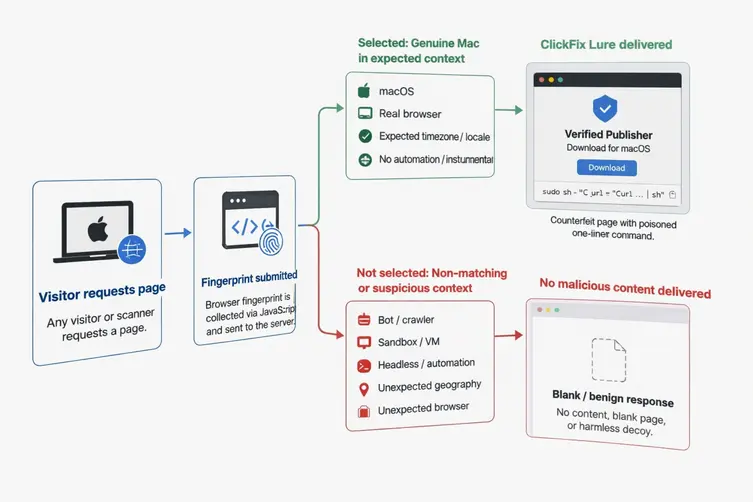
Quick tl;dr: a big macOS bait-and-switch operation spun up more than 250 throwaway front-end domains that first browser fingerprinting visitors and then decide — server-side — whether you get a harmless-looking page or a malware lure pretending to be a macOS download.
The fancy part isn’t the fake download graphic; it’s the tiny JavaScript gate that probes the browser like an overzealous bouncer. It reads things like the platform string, screen and window sizes, WebGL signals, timezone, iframe status and even whether the dev console is open or a video codec is faked. If the visitor looks like an automated scanner, sandbox, or a user in the wrong place, the server will hand them a blank page, a fake extension offer, or some unrelated business site. If the visitor looks like a real Mac sitting in the right context, the server serves a GitHub-styled “Download for macOS” lure complete with a forged badge.
If a sucker follows the instructions, they’re told to copy an obfuscated command into Terminal. That command pulls more scripts from the attackers, which ultimately launch an infostealer that scoops up browser info, saved credentials, authentication stores, cryptocurrency wallets and other juicy files. The installer step still expects the user to paste and run text in Terminal — an old trick re-used with new gatekeeping.
How to defend yourself and hunt the gate
Because the malicious page only appears for carefully chosen visitors, defenders are better off hunting the gate and staging paths than chasing a rotating list of disposable landing domains. Here’s a cheatsheet to spot and stop the operation:
- Watch for browsing activity followed by unusual Terminal behavior — especially commands like
curlpiped intozshorbash, Base64 decoding,osascriptusage, archive creation, and then outbound HTTP POSTs. - Hunt for artifacts of the fingerprint gate: self-submitting forms, hidden fields that carry fingerprint blobs, and the odd
mode:"php"tag packed into the fingerprint payload. - Block shared staging infrastructure and the obvious staging endpoint patterns such as
/curl/<id>rather than wasting time blocking every throwaway front-end domain. - Look for disposable domain patterns — many use combinations like “file” + dictionary word — but use that as a lead, not the whole story.
Vendor protections have improved: modern macOS releases show confirmation prompts when users paste complex commands into Terminal after a long idle period and monitoring tools can trace pasted commands, process trees and network activity to block known malicious behavior. Still, the simplest and most reliable rule remains: never paste random commands you get from a website, CAPTCHA, chat, or download page into Terminal. If a site asks you to do that, it’s probably trying to turn your Mac into an open wallet or a data vacuum.
Two final points: this gate looks designed to defeat automated analysis and hide the infrastructure from crawlers and sandboxes, not to change the underlying attack mechanics. The lure still needs a human to paste and run the command — so social engineering is still the weak link the attackers are exploiting. And while telemetry shows the campaign distributed multiple payloads, the people running it and the total number of victims remain undisclosed.
In short: lock your curiosity when a site tells you to paste into Terminal, monitor for the fingerprinting gate artifacts and staging paths, and focus on the infrastructure that matters instead of chasing hundreds of disposable landing pages. Stay suspicious, stay safe, and keep your Terminal paste buffer locked down.