
Meet ClickLock: a sneaky macOS information stealer that bullies users into giving up their system password. Discovered by researchers at Group-IB after a suspicious submission on VirusTotal, this shell-script-based menace has infected systems worldwide and specializes in nicking browser data, crypto wallets, and other juicy credentials — all without fancy zero-days, just social engineering and persistence.
What ClickLock actually does (and why it’s annoying)
ClickLock doesn’t bother exploiting a kernel hole or privilege escalation — it tricks people. Attackers lure victims into pasting a command into Terminal (often disguised as a harmless verification step). That command hides the cursor, disables keyboard interrupts, suppresses macOS notifications for hours, and quietly downloads the malware modules in the background.
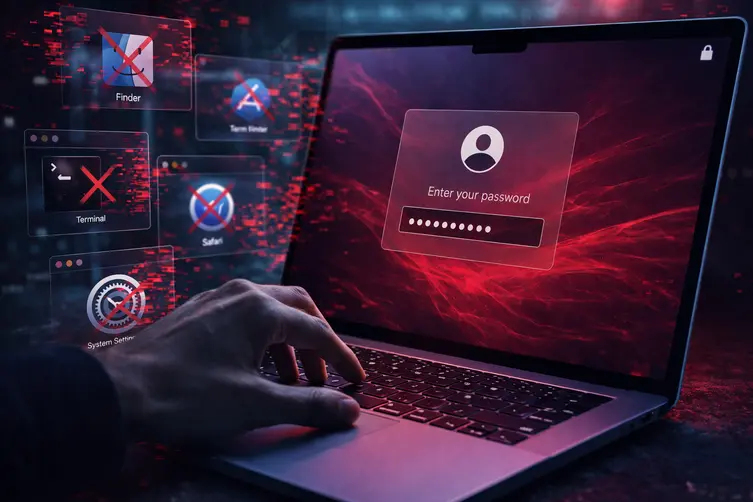
The script then pops up a dialog that looks like a legitimate macOS password prompt and displays the victim’s real username and an Apple icon. If you type your password, it validates the entry and sends it off to the attacker. If you cancel, the script simply makes itself stick around via LaunchAgents and comes back at next login.
On subsequent runs, ClickLock goes nuclear: it repeatedly kills visible apps like Finder, Dock, Terminal, Activity Monitor, System Settings, Spotlight and web browsers so the only thing left on screen is a password dialog. This coercion is driven by a termination cadence that runs many times per second and can continue for days unless the correct password is entered. Meanwhile, another agent asks Keychain for Chrome’s safe-storage key so stolen browser data can be decrypted.
The data-harvesting side is thorough. It grabs saved logins, cookies, autofill, bookmarks, local and session storage, desktop and extension wallet files, password-manager extension data, shell histories, FTP configs, public IP and basic system info — basically everything a crook would love. Collected files are zipped (big files split up) and uploaded to the attacker via API calls.
Most modules self-delete after doing their job, making forensic traces short-lived, but one component — a modified GSocket reverse-shell — stays put as a backdoor and reconnects to a relay so attackers can come back later. Persistence is layered: LaunchAgents, crontab edits, and tweaks to shell profile files.
How to spot and survive this mess
There are a few behavioral signs that can give ClickLock away: repeated process termination, mass access to browser profile folders, a flurry of osascript password prompts, and outbound requests to APIs used for exfiltration. Those are the things defenders can monitor for.
- Never paste random Terminal commands you don’t fully understand — especially from a webpage that looks professional. If a site asks you to open Terminal, it’s a red flag.
- If your Mac becomes unresponsive and asks for your login password while apps keep closing, don’t enter it. Force a shutdown (hold the power button) and boot into Safe Mode to investigate.
- Check for unusual LaunchAgents in ~/Library/LaunchAgents and odd cron entries or changes to ~/.bash_profile, ~/.zshrc, or other shell files.
- Revoke suspicious Keychain permissions and rotate passwords and keys if you suspect compromise.
- Run up-to-date endpoint/antivirus scans and look for a lingering reverse-shell binary; that’s the component most likely to persist.
In short: treat any Terminal paste-from-web prompt like a hot potato, keep backups, and monitor behaviors rather than just files. ClickLock is loud because it tries to make the system scream until you hand over your password — don’t oblige it. If you want to sound like a detective, watch for dozens of process kills and errant password dialogs; those are usually bad news.